
Email to SMS
Introduction
- Email-to-SMS is a service that allows users to send and receive SMS messages through their existing email provider. This technology converts emails into SMS messages, making it easy to communicate via text without needing a dedicated mobile app.
- Messages can be sent to either single or multiple recipients in one send.
Video
Email to SMS settings
- To access the Email to SMS settings, select the profile drop-down, then select message settings and messaging.
- In the settings tab, select the Email to SMS settings
Adding an Email To SMS user

- You will be able to add Email to SMS users to your account by selecting the add users box and entering the email address of the person who will be sending Email to SMS from their email.
- Once you have added the email address, press save changes and it will now appear in your users list.
Security settings

- Now that you have set up the Email To SMS user(s), you will need to add the IP addresses from which the emails will be sent from.
- You will need to get in touch with your IT department/team/person, who will be able to provide you with your IP address.
- The IP address(es) will be whitelisted l by Esendex.
- Enter your IP address and save. You will now be ready to get your Token.
Token creation

- Now that you have set up your Email to SMS users and saved IP addresses, we can create your token. The Token is only required to be generated once.
- Once generated, the token information is hidden, so please ensure you keep a record of it you will receive a prompt to save it, in a location of their choosing.
- Please be aware: it is possible to create more than one token. If a user forgets to save/loses track of their token, they can create a new one and use it.
- This will be required to be included in the message body format of every Email-to-SMS sent and helps to ensure only the people you want to send SMS from their email can do so.
Sending Email-To-SMS
- When sending an Email to SMS, you will use your existing email provider and will not require a separate email inbox or sent folder.
- Please be aware: You will not be required to log into Esendex to send or receive messages and send to one or multiple recipients in one send.
Message body format
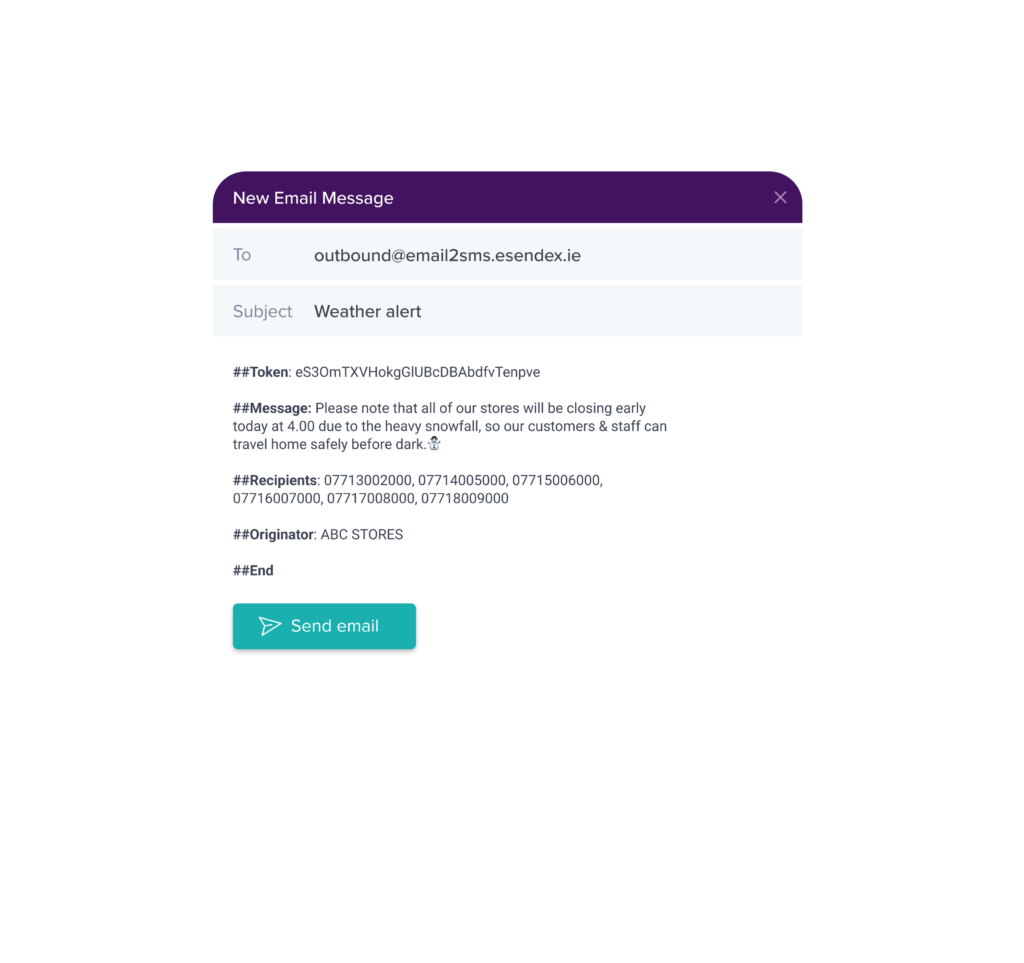
The message body format will be as follows:
- ##Token: <token>+
- ##Message: <plain text>
- ##Recipients: <list of mobile numbers separated by commas>
- ##Originator: <default Sender ID / VMN>
- ##End
Please be aware – the exact format must be replicated in every Email-to-SMS message sent to send successfully.

Features/FAQs
Let’s take a look at some of the features that will be part of the Email to SMS product
Contact list link
- Please be aware: There is no link between Email-to-SMS & Contacts & Groups.
- A user cannot select contacts from their contact list or a group to send an SMS to using Email-to-SMS.
- All recipients (mobile numbers) have to be entered manually to send an Email-to-SMS.
Email signatures
- When using email to SMS, your email signatures will automatically be removed and will not appear in the SMS message.
- Please be aware: This will not be included in the character count.
Email subject line stripping
- If the email subject line contains any text, it will be automatically cleared and will not be included in the SMS message sent to the recipient. This also will not be included in the character count.
Default sender ID / VMN
- Default sender ID / VMN is an account-level setting & will be applied to all messages, unless changed prior to a specific send, this will be set on the Esendex site.
- The default sender ID / VMN set in Esendex can be replaced by entering an alternative in the ##Originator: <default Sender ID / VMN> part of the message body format.
- The alternative will appear to SMS message recipients if it has been registered on the platform.