
RCS – Rich card
Introduction
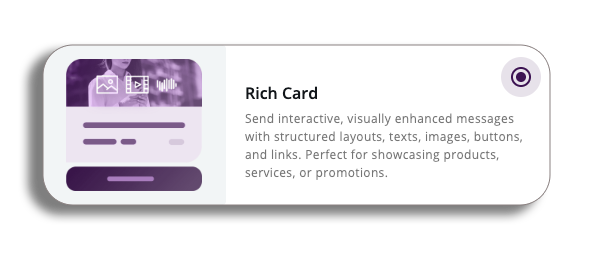
On the Create Message Template page, select the RCS channel, your reason for sending and then select the Rich Card option.
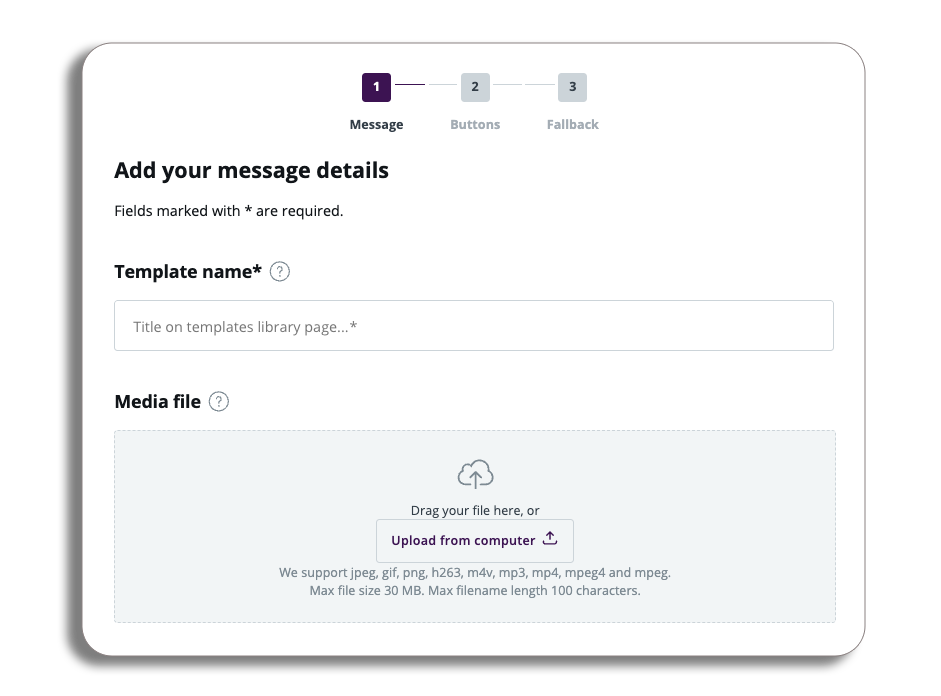
One of the first things you may notice is that we have three steps in the creation process:
- Message
- Buttons
- Fallback (if you do not have fallback enabled, this will not be visible)
Message
Enter your message name and then add the file you wish to use in your Rich card template.
You will need to add at least one of the following for you to proceed with the Rich card message.
Media File
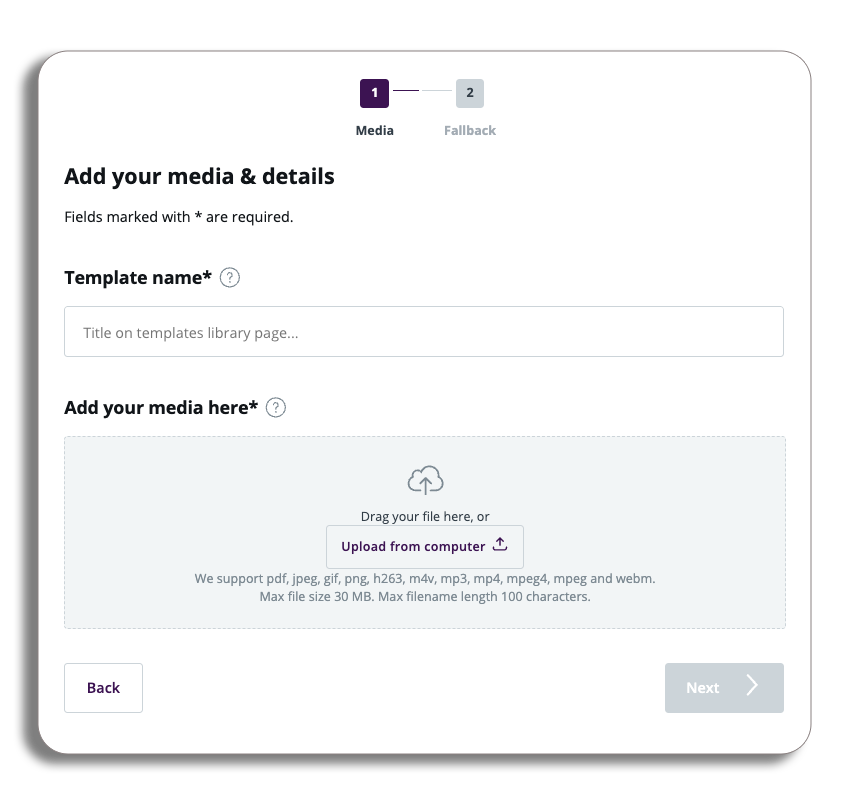
Template name: Add your template name in the template name field.
Adding your media here: You will be able to add several file types as media to your Rich card file; they are:
- Jpeg
- Png
- H623
- M4v
- Mp3
- Mp4
- Mpeg4
- webM
- And many more….
Please be aware: We are aligned with the standards for Google and the networks in terms of files you can upload.
Uploading a file
Let’s take a look at uploading a file. You can drag and drop your file or upload from the computer by selecting the button.
Once the file has uploaded, you will have confirmation of this, you will also see the name of your file and the file size.
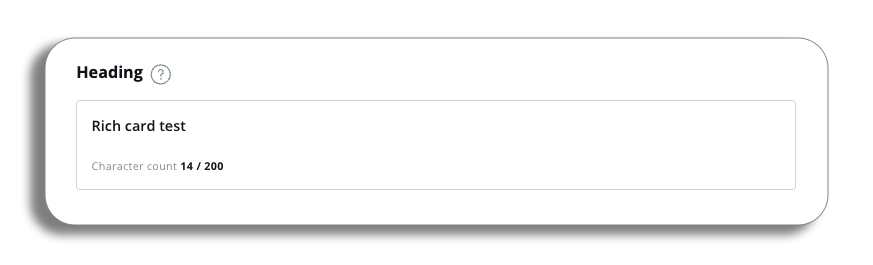
Heading
Here you can enter the title of your Rich card; this will have a character limit of 200.
Message
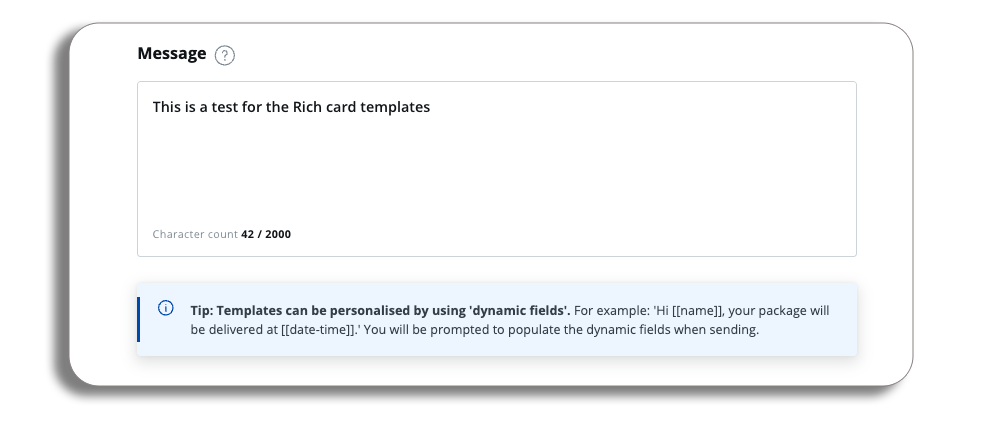
Enter your message; you will be able to see the character count and message parts, and you will also be able to add dynamic fields to your messages as well.
Message preview
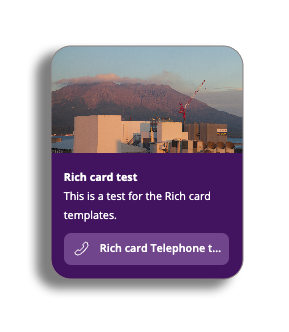
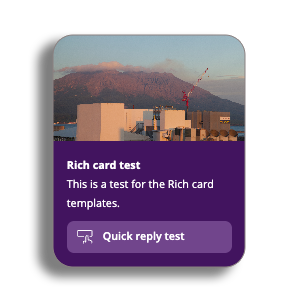
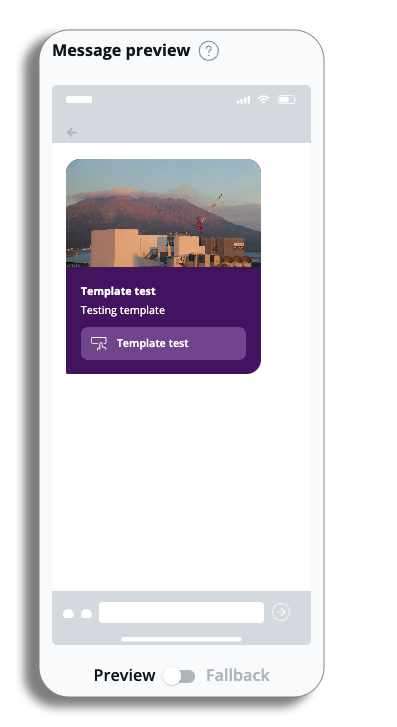
The preview will also be visible of the file on the left-hand side and will show the Media,Title and Message you have uploaded.
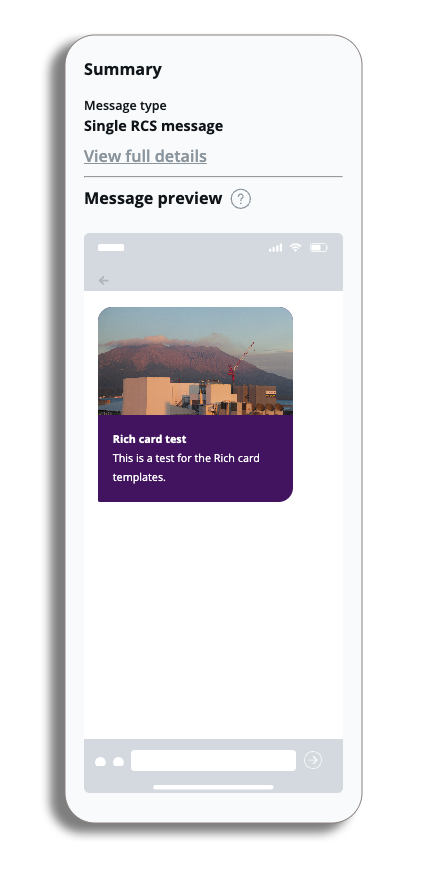
Once you are happy with your Rich card design, click the next button to add Buttons.
Buttons
Buttons can be added to your Rich card message to help guide customers to the next part of the message journey.
There will be four buttons available for you to use:
- Link
- Calendar
- Location
- Telephone
- Quick reply
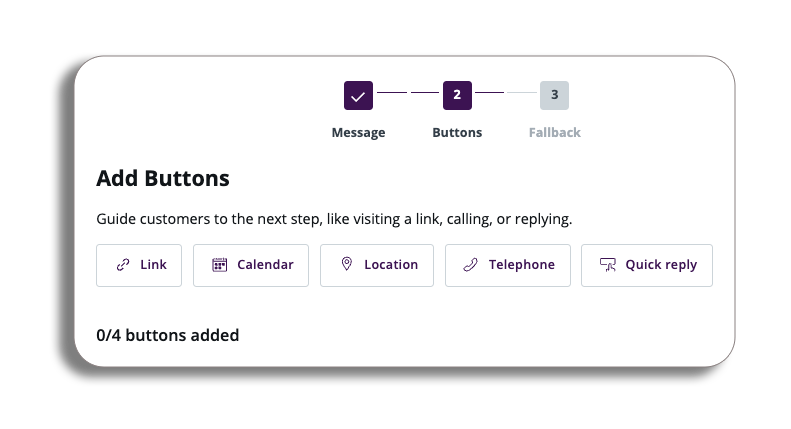
Please be aware: Only four buttons can be added to your Rich card message, but they can all be the same buttons, i.e. four links
Overview
Once you select one of the buttons, a pop-up for the button will appear.
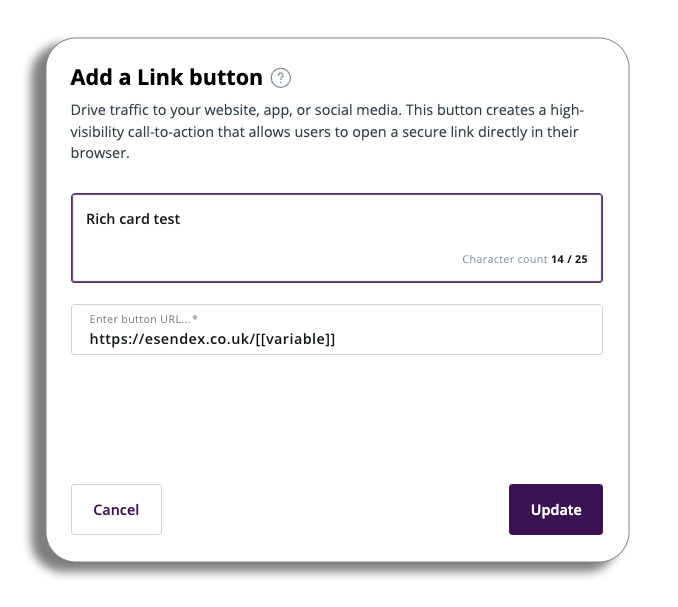
You will be able to add a button label; this is what will appear in the button. (You will be able to add variables to the button if required).
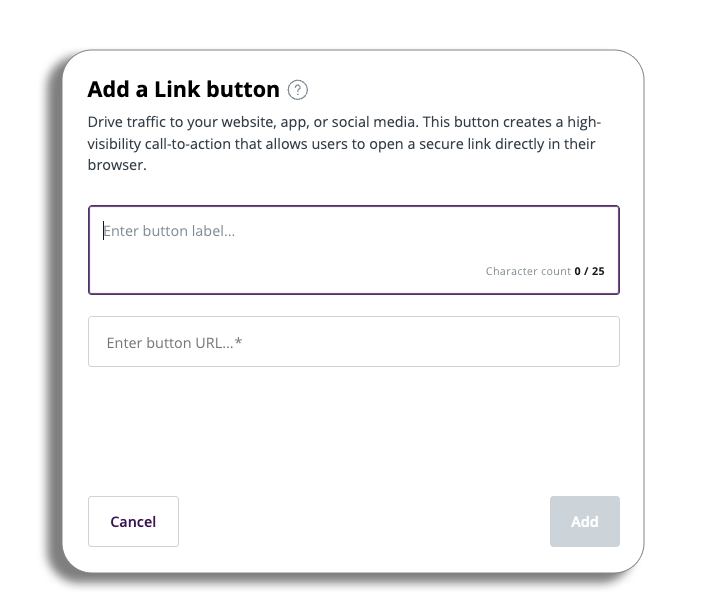
In the pop-up, you will get a summary of the button’s abilities.
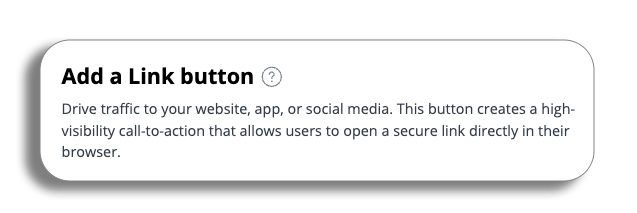
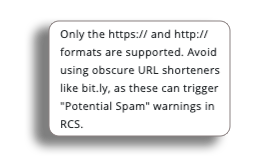
By selecting the? you will get more technical details about the button you have selected.
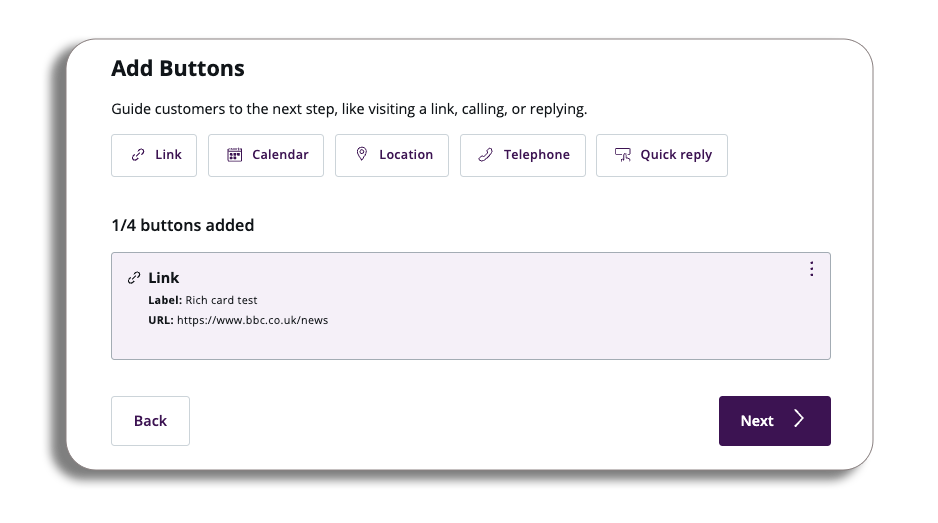
Once you have completed your button press add, you will now be back in the button stage of the Rich card process.
The button you have selected will show which type of button it is, and the relevant information entered (in this case the Label and URL).
Please be aware: Every button will have its own character count, and it will not be included in the other character counts of the other fields.
If you select the three dots on your created button you will have the follwing options:
- Edit: Go back into your button and amend.
- Move up: Move the position of your button up (only available if you have more then one message).
- Move down: Move the position of your button down (only available if you have more then one message).
- Duplicate: duplicate the button you have selected the three dots on.
- Delete: Delete the button you have created.
Now that we have had a quick overview of the process lets take a look at each of the buttons and what they can do.
Button types
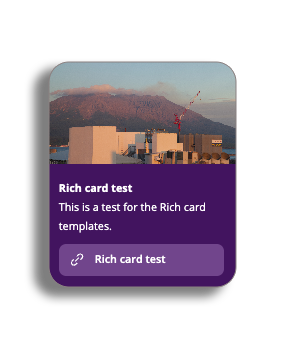
Link
You will need to add a URL link for this button. You can make the link a variable if required.
Calendar
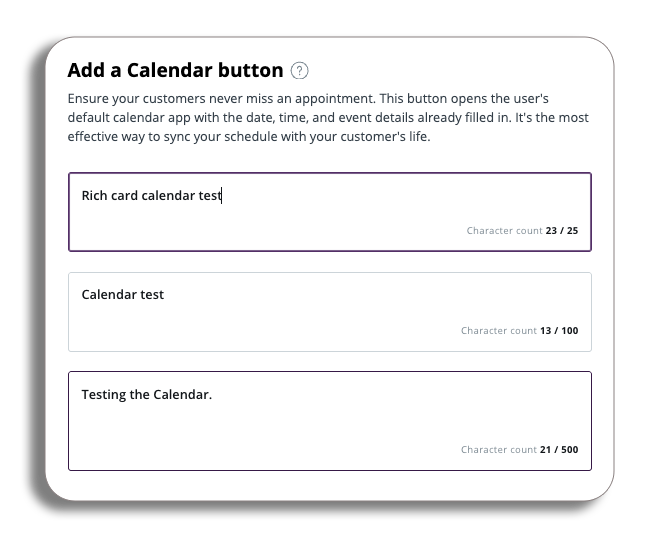
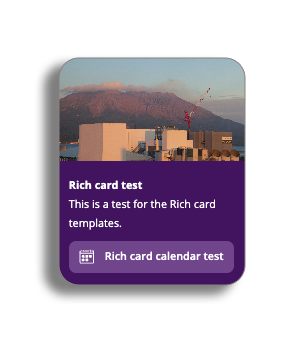
The calendar button will have the button label where you can add the button name. You will also be able to add the event title and description of the event.
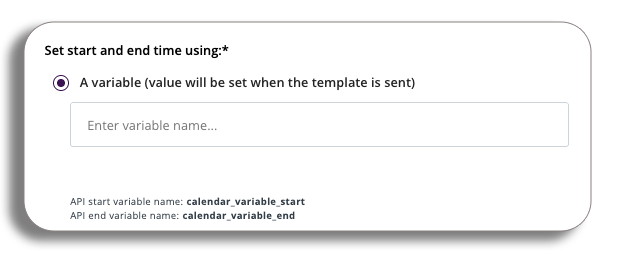
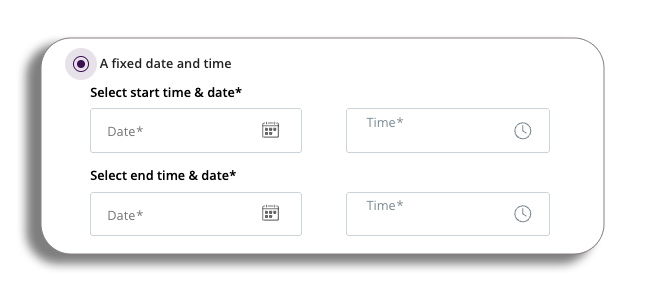
You will have two options for setting the date and time for the calendar.
Variable: This will require you to put in an API (an example is given) in the section.
Fixed: Set the date and time for the beginning and end of your event manually.
Location
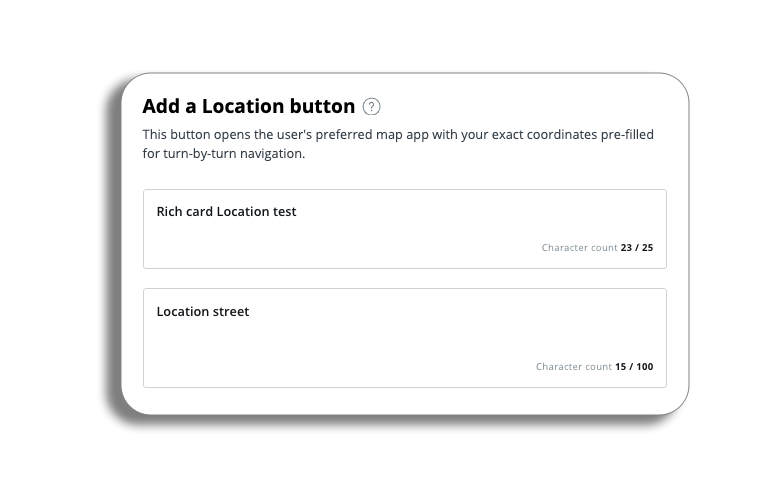
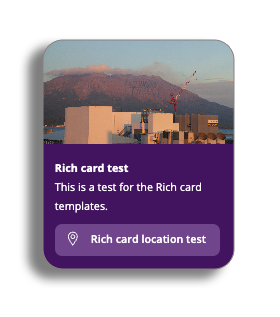
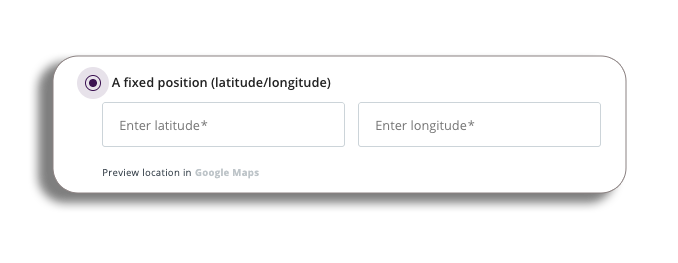
For a location button, add your button label and then the location label.
Variable: This will require you to put in a API (an example is given) in the section
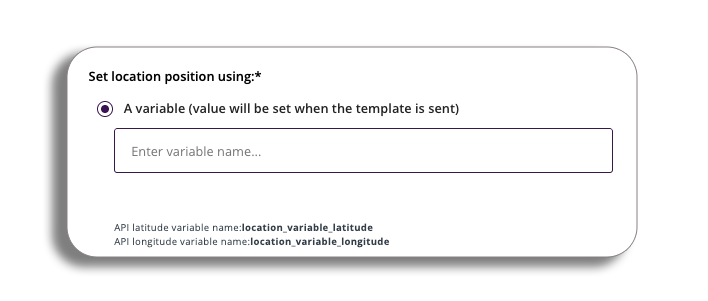
Fixed: Set the position of the longitude and latitude manually.
Once you have entered this, you will be able to preview the coordinates via a Google Maps link.
Telephone
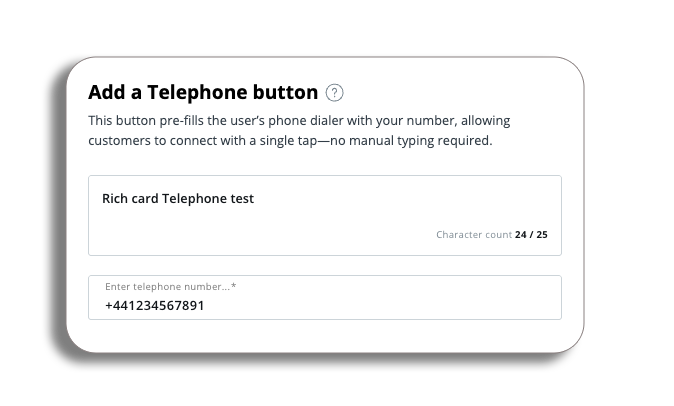
Adding a telephone button will give you the option to add the button label and the telephone number.
Please be aware that we only accept the country code-formatted buttons (UK = +44).
Quick reply
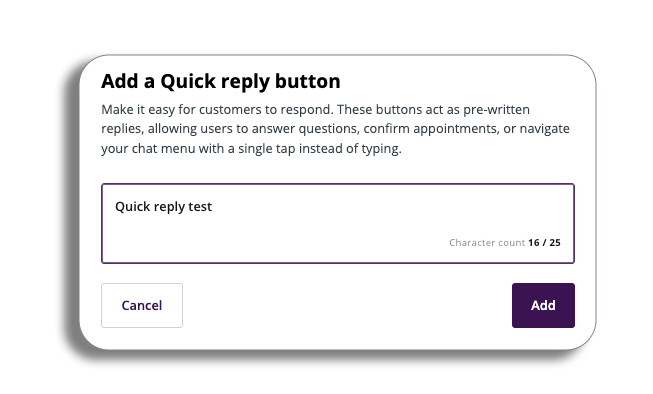
The Quick reply will let you create a name for a button that can be used as a pre-written reply to your Rich card.
SMS Fallback
Please be aware: If you decide that you want to remove SMS fallback, you can do this by contacting your account manager.
The SMS fallback will be triggered when a customer cannot receive a Rich card, so they will receive an SMS instead.
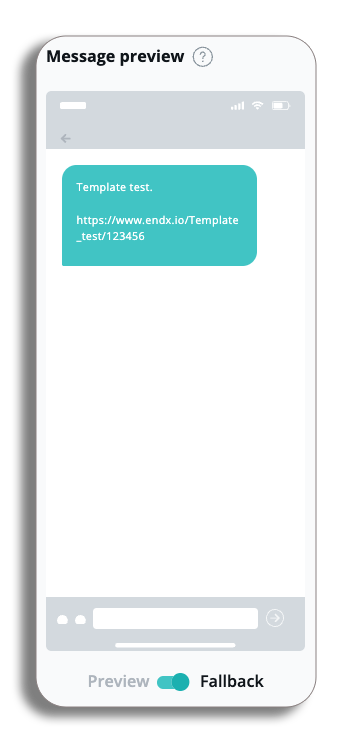
In the fallback, the user will see a URL; this will redirect the recipients to a webpage where they will be able to view the RCS content.
You will be able to personalise the message content of your fallback message (there will be an example in the text box).
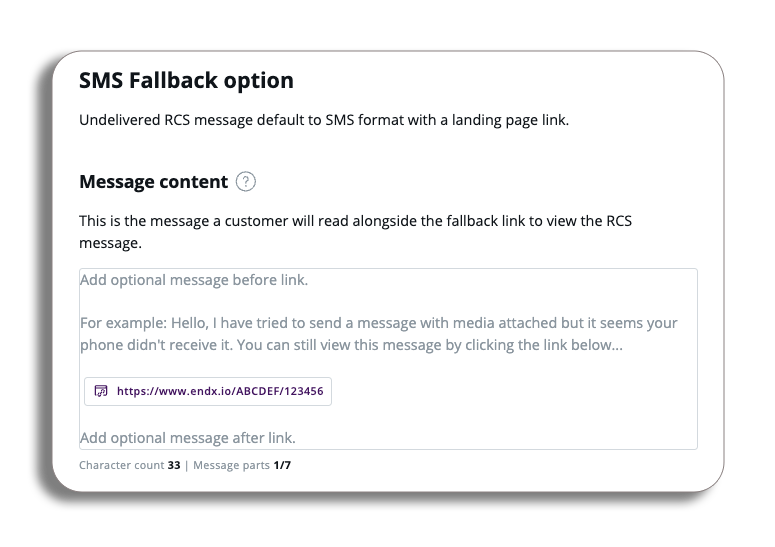
You will be able to personalise the message content of your fallback message (there will be an example in the text box).
Enter your message; you will be able to see the character count and message parts and you will also be able to add dynamic fields to your messages as well.
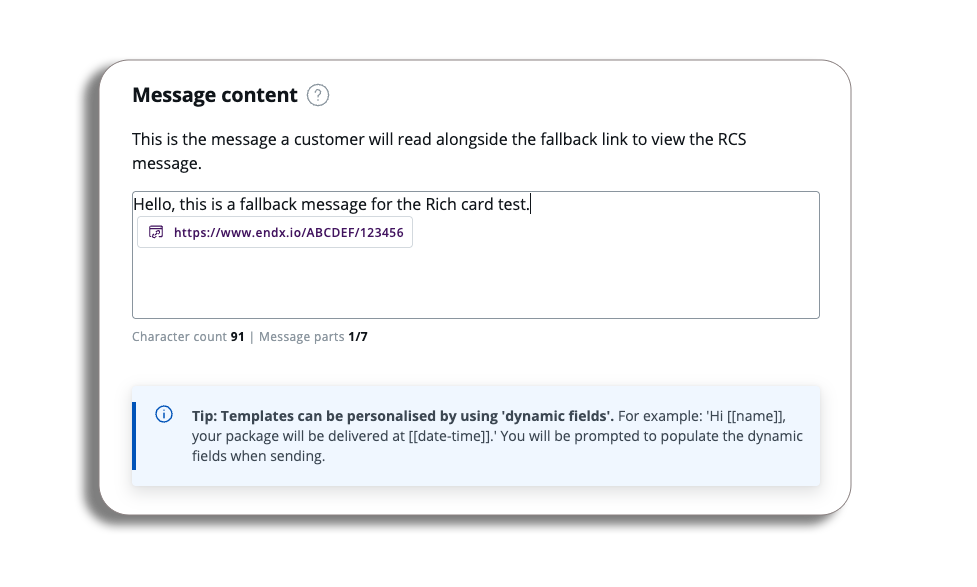
Once you have created your message content, we can look at adding a Media link
Media Link
The media link will be the URL that the user will see and select in the SMS fallback message to access the rich content (image, etc).
You will be able to customise your media link with a branded URL, this can be added in the branded URL field. You will get a preview example of the branded URL to review.
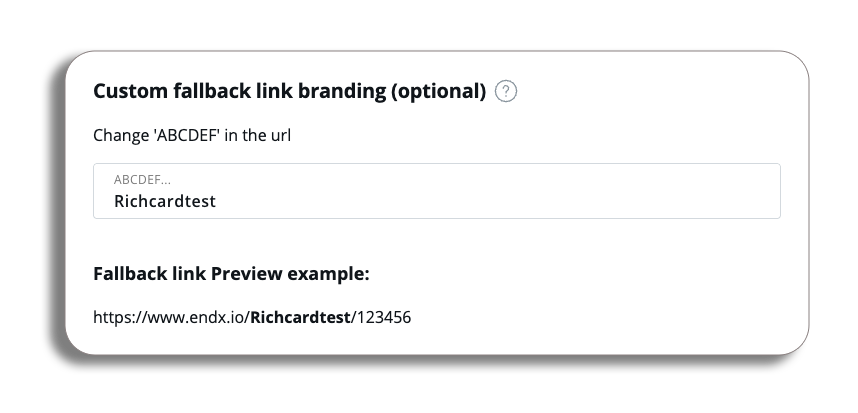
Please be aware: You can only enter the name of your brand.
To review the SMS fallback message, you just need to select the preview button at the bottom of your message preview and switch it to fallback.
Once you are happy with the Rich card message, buttons and your SMS fallback message. You can press the save button, and you will have created your message and will be back at the message template library.